
Introduction
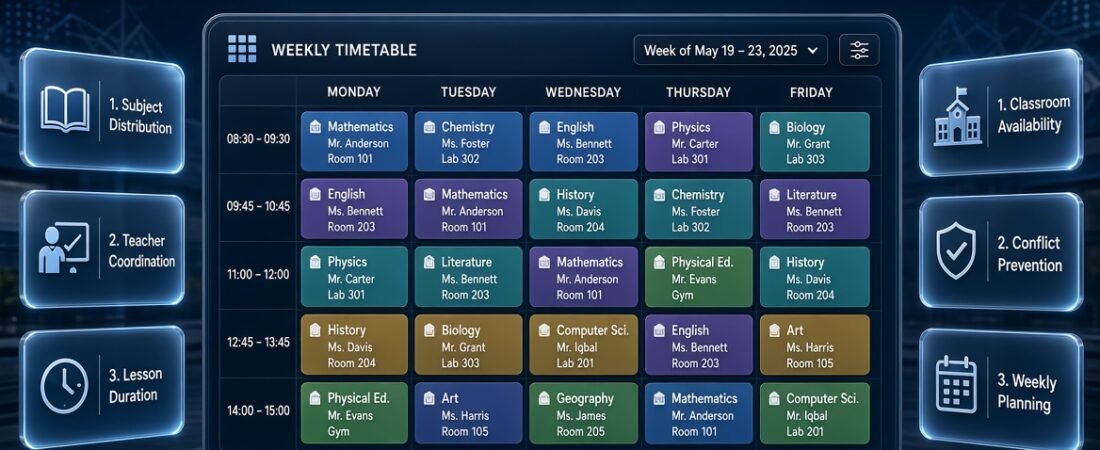
Class Timetable Grid Builder | A school timetable can look simple until you need to coordinate different subjects, teachers, classrooms, lesson durations, and student groups. One scheduling mistake can create overlapping lessons, unavailable classrooms, or an unbalanced school day. A class timetable grid builder helps solve these problems by organizing teaching periods into a clear weekly structure that teachers, students, and administrators can understand.
Whether you’re preparing a timetable for a primary school, secondary school, tutoring center, or educational institution, the right grid makes academic planning easier. Instead of repeatedly changing handwritten schedules, you can arrange weekdays, periods, subjects, and classroom assignments in one organized layout.
A well-planned timetable also helps students prepare for lessons, enables teachers to manage their teaching responsibilities, and allows administrators to identify scheduling conflicts before the timetable is published. When connected with broader academic planning, it can support a more consistent approach to school organization.
You can explore RTI Scheduler for additional academic planning resources while learning how to structure an effective timetable.
In this guide, you’ll learn how a class timetable grid builder works, how to create a practical timetable step by step, which features matter most, how to distribute subjects across the week, and how to avoid the mistakes that make school schedules difficult to manage.
What Is a Class Timetable Grid Builder?
A class timetable grid builder is a planning tool or structured template that helps organize school lessons into a grid containing weekdays, periods, time slots, subjects, and other scheduling details. It provides a visual overview of when lessons occur and helps users check whether the weekly schedule meets the institution’s academic and operational requirements.
The basic structure usually places weekdays across the top and teaching periods down the left side. Each cell represents a particular period on a specific day.
For example, Monday through Friday can appear as column headings, while Period 1 through Period 7 appear as row labels. Subjects such as Mathematics, English, Science, History, and Computer Studies are then assigned to the appropriate cells.
The completed grid gives teachers and students a clear view of the weekly routine.
A basic grid can be created on paper or in a spreadsheet. More advanced digital timetable builders may provide editable cells, reusable templates, teacher availability records, and tools for checking scheduling conflicts.
The best option depends on the number of classes involved and how complicated the school’s scheduling requirements are.
Why Is a Class Timetable Grid Important?
A class timetable grid makes academic schedules easier to organize because it presents information in a consistent format. Instead of checking separate notes to discover which subject is scheduled next, users can review the complete daily or weekly structure at a glance.
It also helps administrators identify problems before they affect classroom activities.
A properly designed grid can help schools:
- Organize subjects across the teaching week.
- Allocate the required number of periods to each subject.
- Identify overlapping teacher assignments.
- Prevent double-booking of classrooms and specialist facilities.
- Keep break times and lesson durations consistent.
- Communicate schedule changes more clearly.
- Prepare individual timetables for different classes.
- Review teaching time before examinations or the end of a term.
The most important advantage is visibility. When all assignments are arranged within a shared structure, it becomes easier to notice missing lessons, excessive repetition, and scheduling conflicts.
However, a grid alone does not guarantee a correct timetable. Its accuracy depends on the information entered and the checks performed before publication.
Who Can Benefit From a Class Timetable Grid Builder?
A class timetable grid builder is useful for anyone responsible for organizing educational activities.
School administrators can use it to coordinate classes, teacher assignments, classrooms, and the overall school day.
Teachers can review their lesson schedules, organize weekly teaching responsibilities, and identify when they need particular resources.
Students can use a timetable to understand their daily routines, prepare the correct books, and plan homework around upcoming lessons.
Academic coordinators can compare scheduled lessons with curriculum requirements and identify subjects that need additional teaching periods.
Tutoring centers can coordinate different groups, tutors, and classrooms without creating overlapping sessions.
Training institutes can schedule courses, practical workshops, and instructor-led sessions within limited operating hours.
A small tutoring center may need only a basic weekly grid. A larger school may require separate class schedules supported by teacher and classroom allocation records.
The goal is to choose a planning structure that matches the institution’s real needs without making the process unnecessarily complicated.
How Does a Class Timetable Grid Builder Work?
A timetable grid builder follows a logical sequence. You define the available days and periods, enter the subjects, assign teachers and rooms where necessary, and review the completed schedule for errors.
Some tools provide a blank grid that users fill manually. Others offer digital editing, dropdown menus, reusable templates, or automated conflict checks.
Regardless of the format, each lesson must fit into an available time slot and have the resources required for it to take place.
Understanding the Main Components of a Timetable Grid
Before creating a timetable, identify the information your grid needs to display.
| Component | Purpose | Example |
|---|---|---|
| Weekdays | Identify teaching days | Monday to Friday |
| Periods | Organize the school day | Period 1, Period 2 |
| Time slots | Show lesson start and finish times | 8:00–8:40 AM |
| Subjects | Identify the lesson | Mathematics |
| Class groups | Specify the students | Grade 7A |
| Teachers | Identify the responsible teacher | Assigned mathematics teacher |
| Rooms | Show the teaching location | Room 12 |
| Breaks | Protect non-teaching periods | Morning break |
| Notes | Record special requirements | Double science lesson |
Not every timetable needs all these fields.
A student-facing timetable may require only subjects, periods, and times. An administrative master timetable may also need teacher names, room assignments, and class identifiers.
Avoid adding information simply because the tool allows it. Every field should help users understand the schedule or prevent a practical problem.
Example of a Simple Class Timetable Grid
Consider a school that operates five days per week and schedules five teaching periods each day.
Its basic timetable could look like this:
| Period | Monday | Tuesday | Wednesday | Thursday | Friday |
|---|---|---|---|---|---|
| 1 | English | Mathematics | Science | English | Mathematics |
| 2 | Mathematics | English | Mathematics | Science | English |
| 3 | Science | History | English | Mathematics | History |
| Break | Break | Break | Break | Break | Break |
| 4 | History | Science | History | English | Science |
| 5 | Computer Studies | Art | Physical Education | Computer Studies | Review |
This example demonstrates the layout rather than a complete school-approved timetable.
Before using a similar grid, confirm that each subject receives its required number of weekly periods. You must also check teacher availability, classroom assignments, lesson durations, and any special curriculum requirements.
For example, if one science teacher is responsible for two classes, those classes cannot be scheduled simultaneously unless another appropriately qualified teacher is available.
A visually balanced grid can still contain operational problems, so the completed timetable needs a separate review.
How to Build a Class Timetable Grid Step by Step
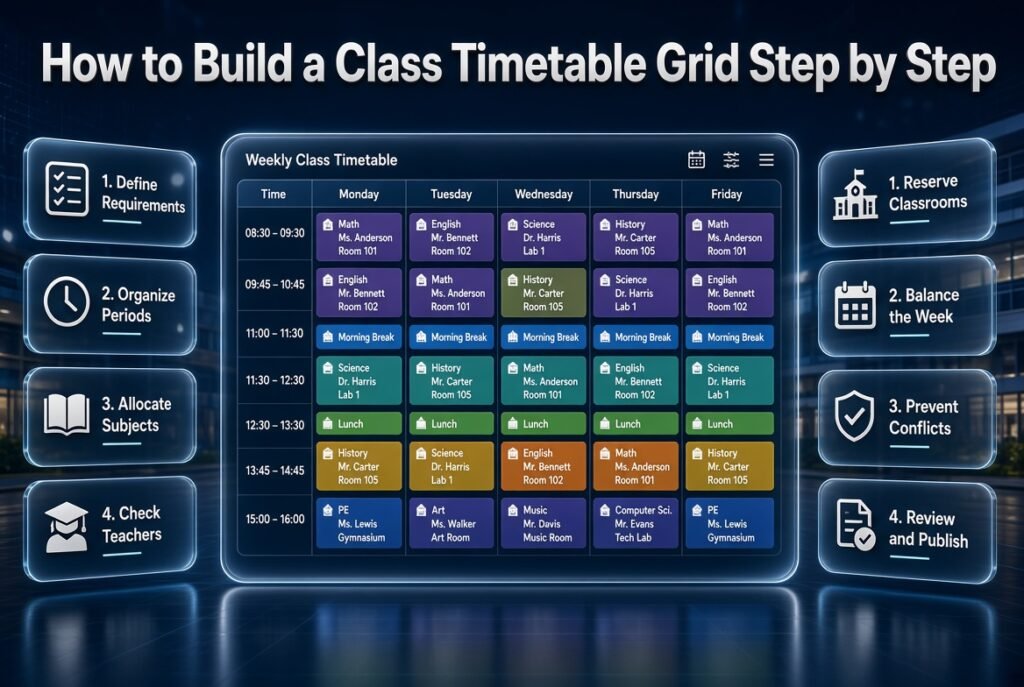
Creating a reliable timetable becomes easier when you follow a consistent planning process. Start with the school’s requirements rather than filling empty cells with subjects immediately.
Step 1: Define the School’s Scheduling Requirements
Begin by recording the rules that determine how the school day operates.
Identify:
- The number of teaching days per week.
- Daily starting and finishing times.
- The number and duration of teaching periods.
- Morning breaks and lunch periods.
- Required weekly periods for each subject.
- The number of classes requiring separate schedules.
- Teacher availability and specialist room requirements.
For example, a secondary school may operate five days per week with seven teaching periods per day. A primary school may use shorter lessons and a different pattern of activities.
These differences affect the structure of the timetable, so the grid should reflect the actual school routine.
Expert tip: Confirm the daily structure before assigning subjects. Changing the length or number of periods after completing the timetable can force you to rearrange several lessons.
Step 2: Choose the Days and Periods
Create the basic grid with weekdays across the top and periods down the left side.
Next, define the start and finish time for each period.
For example:
| Schedule item | Time |
|---|---|
| Period 1 | 8:00–8:40 AM |
| Period 2 | 8:40–9:20 AM |
| Morning break | 9:20–9:40 AM |
| Period 3 | 9:40–10:20 AM |
| Period 4 | 10:20–11:00 AM |
Continue until the entire school day is represented.
Using exact times makes the timetable easier to follow than a grid that only displays period numbers. Students can see when a lesson begins, while teachers can plan transitions and classroom activities more accurately.
If your institution uses variable lesson lengths, represent those differences clearly rather than forcing every session into an identical time slot.
Step 3: List Every Subject and Its Weekly Requirements
Before placing subjects in the grid, create a list showing how many periods each class needs for every subject.
Use the approved curriculum or school teaching plan as your reference.
For example:
| Subject | Required weekly periods |
|---|---|
| Mathematics | 6 |
| English | 6 |
| Science | 5 |
| History | 3 |
| Computer Studies | 2 |
| Art | 2 |
| Physical Education | 2 |
| Total | 26 |
This example assumes the class requires 26 teaching periods per week.
Compare the total with the available grid capacity. If the school provides 25 periods but requires 26, the schedule cannot meet every listed requirement without an adjustment.
Likewise, if the available grid contains 30 periods, the remaining four periods may be allocated to other approved subjects or activities.
Do not assume that every subject should receive an equal number of periods. Different subjects have different curriculum requirements.
Step 4: Prepare a Teacher Availability Record
Teacher availability must be considered before finalizing subject assignments.
A subject may fit perfectly into a particular time slot, but the lesson cannot proceed if the assigned teacher is already teaching another class.
Prepare a record that includes:
- Subjects each teacher can teach.
- Classes assigned to each teacher.
- Periods when the teacher is unavailable.
- Required planning or administrative responsibilities.
- Any special teaching arrangements.
For example, if a mathematics teacher is teaching Grade 7A during Monday’s second period, that same teacher cannot simultaneously teach Grade 7B.
A digital timetable builder with conflict detection can help identify this issue. If you use a manual grid, maintain a separate teacher timetable and check each assignment against it.
Common mistake: Checking only the class timetable and assuming teacher assignments will work automatically. Always review both views before publishing the schedule.
Step 5: Identify Classroom and Equipment Requirements
Some lessons require specific facilities.
Science experiments may need a laboratory, computer lessons may require suitable equipment, and physical education may depend on the availability of a sports area.
List these requirements before assigning lessons.
Suppose a school has one computer laboratory and three classes that need computer lessons. Those classes cannot all use the same laboratory during the same period.
Room capacity also matters. A classroom suitable for 25 students may not accommodate a group of 40 safely or comfortably.
Reserve shared facilities first, then schedule lessons that can take place in ordinary classrooms.
This approach reduces the risk of having to rearrange several lessons because a specialist room is unavailable.
Step 6: Schedule the Most Restricted Lessons First
Begin with lessons that have limited scheduling options.
These may include:
- Laboratory sessions.
- Practical workshops.
- Lessons requiring specialist teachers.
- Classes that share a single facility.
- Sessions that must occupy consecutive periods.
Once these assignments are placed, schedule more flexible subjects around them.
For example, if three classes need a single science laboratory, reserve three suitable sessions before filling the remaining grid.
This method works because the lessons with the fewest available options are usually the hardest to accommodate later.
Step 7: Distribute Subjects Across the Week
A balanced timetable considers both the number of lessons and their distribution.
If Mathematics requires six weekly periods, spreading them across the week may provide regular opportunities for instruction and practice. Scheduling all six periods on one day may not suit the school’s teaching plan.
However, not every subject should follow the same pattern. Practical lessons may benefit from consecutive periods, while other subjects may work better as shorter, more frequent sessions.
Review the completed grid for:
- Too many identical subjects on one day.
- Excessive gaps between connected lessons.
- Long sequences of demanding activities.
- Insufficient time for practical work.
- Uneven distribution of weekly teaching periods.
The goal is not to make every day look identical. It is to create a schedule that supports the curriculum and remains manageable for students and teachers.
Step 8: Include Breaks and Transition Time
Breaks should be included in the original timetable structure rather than added after the subject assignments are complete.
Show morning breaks, lunch periods, and other required non-teaching periods clearly.
Also consider the time students need to move between classrooms, collect equipment, or prepare for practical sessions.
A timetable may look correct on paper but still create daily disruption if students must move across a large campus with no reasonable transition time.
For schools with multiple groups, review shared facilities and movement patterns to prevent unnecessary congestion.
Step 9: Review the Completed Timetable
Once all lessons have been assigned, review the grid systematically.
Ask the following questions:
- Does every subject receive the required weekly periods?
- Are any teachers assigned to overlapping lessons?
- Are classrooms and specialist facilities double-booked?
- Are breaks and lesson times correct?
- Are practical sessions long enough?
- Are all required periods filled appropriately?
- Do lessons fit within the school day?
- Are there unnecessary gaps or awkward transitions?
Check class schedules, teacher schedules, and room assignments separately.
Correct the problems before sharing the timetable with students and staff.
Step 10: Save, Publish, and Maintain the Timetable
Once the timetable has been checked, prepare the appropriate version for each audience.
Students may need a simplified weekly schedule, while teachers may need their individual assignments. Administrators may require the full master timetable.
Save an approved copy and establish a clear process for recording changes.
If a teacher becomes unavailable or a classroom closes temporarily, update the master timetable first and communicate the change to everyone affected.
For broader planning, connect weekly scheduling with Academic Calendar Planning so that term dates and other important commitments are considered alongside weekly lessons.
What Features Should a Good Class Timetable Grid Builder Include?
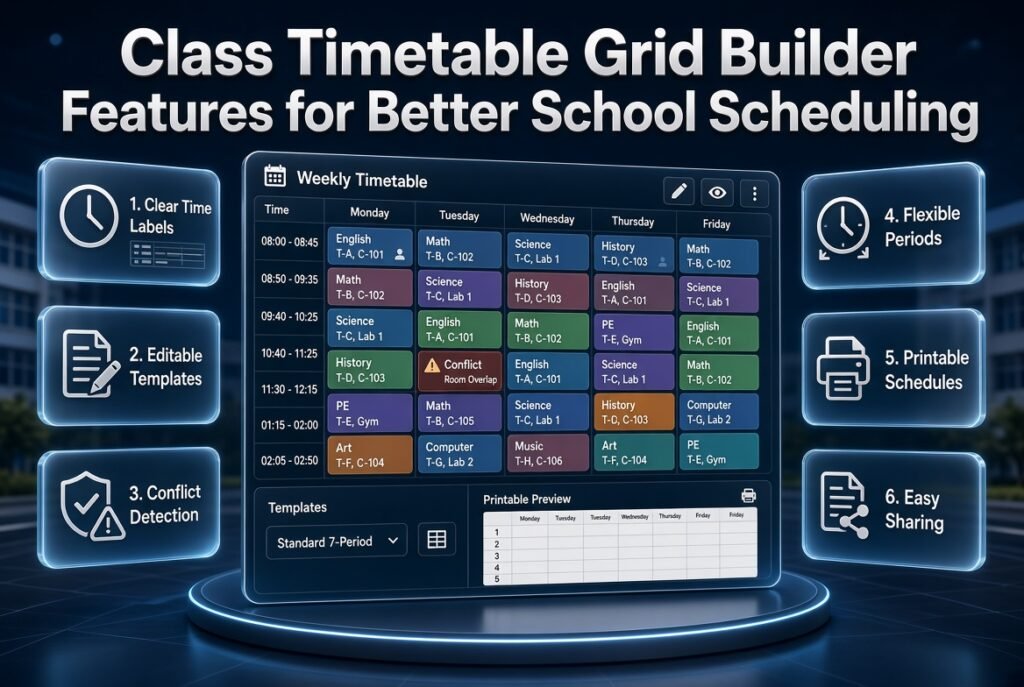
The most useful features depend on the institution’s needs. A basic builder should make lessons easy to organize, while a more advanced solution should support complicated assignments and help identify scheduling errors.
Clear Rows, Columns, and Time Labels
A good grid should be readable without requiring users to study a complicated legend.
Days should be clearly labeled, periods should appear in chronological order, and start and finish times should be easy to identify.
Use consistent formatting throughout the schedule. If a subject name is too long for one cell, consider an approved abbreviation or a wider layout.
Avoid putting unnecessary information into every cell. A timetable should communicate the essential details quickly rather than becoming a detailed lesson-planning document.
Editable Cells and Reusable Templates
Editable cells make it easier to move lessons, change period assignments, and prepare schedules for different classes.
Reusable templates are useful when multiple grades follow the same daily structure.
For example, the same basic grid can be reused for Grade 6 and Grade 7 while keeping subject assignments separate.
However, a copied template must be reviewed carefully. Teacher availability, room requirements, and curriculum allocations may differ between classes.
Reusing a layout saves time; reusing unverified assignments can create conflicts.
Teacher and Classroom Conflict Detection
Conflict detection is especially useful for institutions with multiple classes.
A suitable system should help users identify when one teacher or classroom is assigned to two lessons at the same time.
It may also help identify missing assignments or invalid time slots.
If your chosen tool does not offer automated checks, you can perform these reviews manually using separate teacher and room schedules.
The important requirement is a dependable checking process, not a particular software feature.
Flexible Period Lengths
Some schools use equal-length lessons, while others schedule longer sessions for practical activities.
A useful timetable builder should accommodate the school’s actual period structure.
If the tool supports only fixed periods, determine whether that limitation will affect laboratory work, workshops, or other lessons that require extended time.
For a simple timetable, fixed periods may be sufficient. More complicated institutions may need a flexible spreadsheet or a dedicated scheduling system.
Printable and Shareable Timetables
Many schools need both digital and printed schedules.
A printable version can be displayed in classrooms, staff rooms, or student planners. A digital version makes it easier to communicate updates.
Before distributing the timetable, check that the text remains readable and that all columns fit on the printed page.
Include the class name, applicable dates, and revision information where necessary.
Class Timetable Grid Builder vs. Spreadsheet vs. Manual Planning
Different planning methods offer different levels of flexibility. The best option depends on how many classes you manage and how frequently the schedule changes.
| Method | Advantages | Limitations | Best suited for |
|---|---|---|---|
| Printable grid | Simple and easy to display | Changes require manual editing | Individual classes |
| Spreadsheet | Flexible and easy to duplicate | Conflict checks may be manual | Teachers and small schools |
| Digital grid builder | Structured editing and reusable layouts | Features vary by tool | Routine timetable planning |
| Dedicated scheduling software | May support complex constraints and automatic checks | May require setup and training | Larger institutions |
| Handwritten timetable | Accessible without technology | Harder to revise consistently | Temporary schedules |
A printable grid is often enough when you only need a straightforward weekly schedule.
A spreadsheet is more useful when you need multiple class sheets, teacher allocation records, or automatic calculations.
Dedicated scheduling software becomes more valuable when numerous classes share teachers, rooms, and specialist facilities.
Before choosing a method, identify the problem you need to solve. A complicated system may create unnecessary work if your school’s timetable is relatively simple.
How to Create Balanced Timetables for Different Class Levels
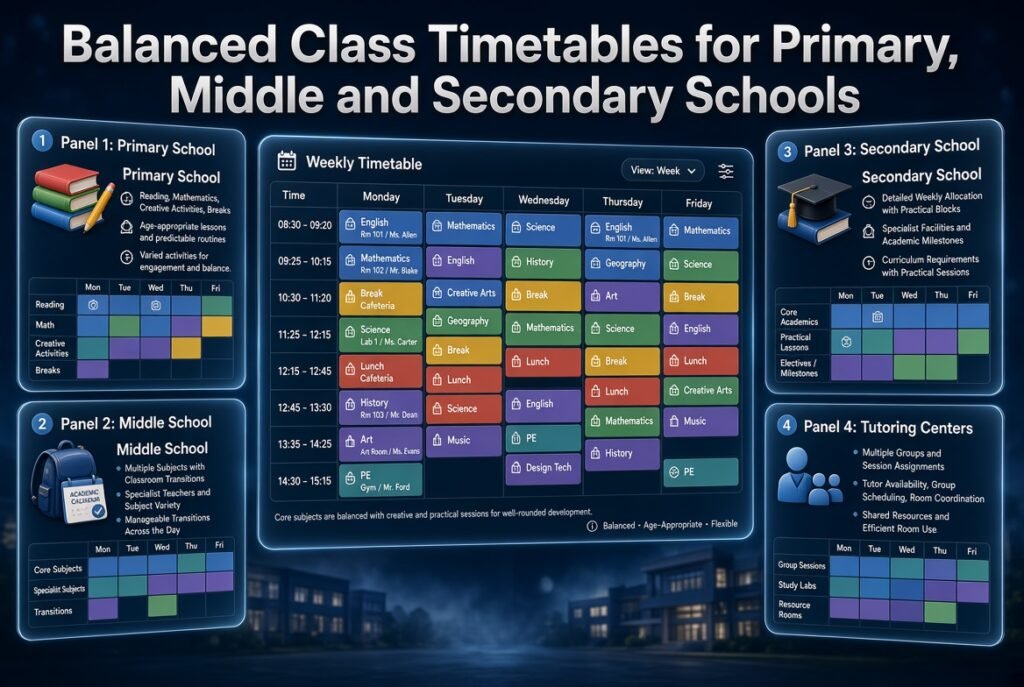
Different age groups have different learning needs, so a timetable should reflect the students who will use it.
Primary School Timetable Planning
Primary school students often benefit from predictable routines, varied activities, and age-appropriate lesson lengths.
A timetable should balance core subjects with creative activities, movement, and appropriate breaks.
When planning a primary schedule:
- Provide the required time for reading and mathematics.
- Include creative and practical activities where appropriate.
- Avoid unnecessarily long sequences of similar lessons.
- Keep transitions manageable.
- Allow reasonable flexibility for classroom activities.
Teachers should also consider how easily younger students can follow the schedule. Clear subject names and a consistent daily pattern make the timetable more useful.
Middle School Timetable Planning
Middle school schedules generally involve several specialist teachers and more classroom changes.
Students may move between mathematics, science, language, history, computer studies, and other subjects throughout the day.
The timetable should account for teacher availability, classroom locations, and transition requirements.
Review the daily subject sequence as well as the weekly totals. A schedule that is technically valid may still be difficult to follow if students must move between distant rooms too frequently.
Secondary School Timetable Planning
Secondary school timetables often require more detailed coordination because subjects may have different weekly allocations, specialist facilities, and examination requirements.
Some lessons need regular weekly coverage, while others benefit from longer sessions.
Use the approved curriculum to guide subject distribution and ensure that practical requirements are included.
When assessments and term milestones affect lesson delivery, coordinate the weekly timetable with the Semester Milestone Calendar.
This helps administrators review the broader academic schedule rather than planning each week in isolation.
Tutoring Centers and Training Institutes
Tutoring centers may schedule multiple groups throughout the day while sharing the same tutors and classrooms.
Their primary challenge is often resource availability.
A useful grid should identify the session time, group, tutor, and classroom. If a tutor teaches several groups, maintain a separate tutor schedule to check for overlaps.
For a small center, a weekly grid combined with a tutor availability record may be sufficient. Larger institutions may benefit from more advanced scheduling features.
How to Improve Subject Distribution Across the Timetable
Subject distribution affects how students experience their school week. The objective is to meet curriculum requirements while maintaining a practical sequence of lessons.
Avoid Unnecessary Repetition
Scheduling the same subject repeatedly may create fatigue or reduce variety, depending on the lesson and the students.
However, repetition is not automatically a problem. Consecutive lessons can be appropriate for experiments, workshops, extended writing, and project work.
Review the purpose of each session before deciding whether lessons should be separated.
A timetable should support teaching objectives rather than follow a visual rule that every day must contain a different combination of subjects.
Give High-Frequency Subjects Appropriate Coverage
Subjects requiring frequent practice should receive their planned number of weekly periods.
If English requires six periods, count the completed assignments instead of assuming the subject appears often enough.
A weekly subject count can reveal missing lessons before publication.
For example, if Mathematics appears five times when the approved plan requires six periods, the timetable needs another assignment.
Use Double Periods When Necessary
Double periods can be helpful when a lesson requires setup, practical work, or sustained concentration.
Science experiments, computer projects, art activities, and technical workshops may benefit from uninterrupted time.
However, longer sessions should not be assigned automatically to every subject.
Consider the curriculum, student needs, and lesson objectives before combining periods.
Review Daily Workload
Evaluate the schedule across individual days as well as across the full week.
Placing several demanding subjects consecutively may create an unnecessarily difficult day for some students.
Review the order of lessons and consider whether the daily sequence provides a sensible mix of activities.
Not every day needs to follow the same pattern. Variation can be useful when it reflects deliberate academic planning.
How to Coordinate a Timetable With the Academic Calendar

A weekly timetable operates within a larger academic structure. Holidays, examinations, school events, and term dates can all affect the number of teaching days available.
Ignoring these commitments may result in missed lessons or repeated changes later.
Account for Holidays and Non-Teaching Days
Before finalizing a timetable for a term, identify public holidays, school closures, and other non-teaching dates.
A weekly pattern may remain unchanged during ordinary teaching weeks, but the school still needs a plan for weeks affected by holidays.
The Academic Holiday Calendar Builder can be relevant when organizing holiday information alongside the school’s broader planning process.
The key is to distinguish the standard weekly timetable from the calendar of actual teaching dates.
Plan Around Major School Events
Examinations, sports days, staff development sessions, and school celebrations may affect ordinary lessons.
Record these events early enough for administrators to review any scheduling implications.
The School Year Event Calendar can support the organization of important dates and activities.
When an event changes the normal timetable, communicate which classes are affected and whether missed lessons need to be rescheduled.
Connect Weekly Lessons With Academic Planning
A weekly grid explains when subjects are taught, but it does not automatically determine what should be covered during each lesson.
Teachers may also need lesson objectives, weekly learning targets, and curriculum milestones.
The Weekly Lesson Period Planner can complement a class timetable by helping organize weekly teaching periods and lesson preparation.
Similarly, the Subject Timetable Maker is relevant when the main task is arranging particular subjects into an appropriate weekly pattern.
These planning activities serve different purposes. A timetable grid organizes available time, while lesson and subject planning help determine how that time will be used.
Common Class Timetable Grid Builder Mistakes and How to Avoid Them
Small planning mistakes can cause substantial disruption once a timetable is in use.
Filling the Grid Before Calculating Available Periods
Why it happens: The planner starts assigning subjects as soon as the table is created.
Why it causes problems: The total number of available periods may not be sufficient for all required lessons.
How to avoid it: Calculate weekly capacity and compare it with subject requirements before scheduling.
For example, five days with six teaching periods per day provide 30 weekly teaching periods, assuming all 30 are available for instruction. If the curriculum requires 32, the structure or approved requirements need review.
Ignoring Teacher Availability
Why it happens: The planner focuses on the class schedule without checking individual teacher assignments.
Why it causes problems: A teacher may be assigned to two classes at the same time.
How to avoid it: Maintain a teacher allocation record and check each lesson against it before finalizing the timetable.
Forgetting Specialist Facilities
Why it happens: Room requirements are considered after subjects have already been placed.
Why it causes problems: Several classes may need the same laboratory or computer room at once.
How to avoid it: Reserve specialist facilities before assigning flexible classroom lessons.
Failing to Count Weekly Subject Periods
Why it happens: The timetable looks balanced, so the planner assumes every subject has enough time.
Why it causes problems: Some subjects may receive fewer periods than required.
How to avoid it: Count every subject’s assigned periods and compare them with the approved weekly allocation.
Making the Grid Difficult to Read
Why it happens: Too much information is placed in each cell or the layout is compressed.
Why it causes problems: Students and teachers struggle to locate the information they need.
How to avoid it: Use clear headings, consistent time formats, readable text, and concise subject labels.
Updating Only One Copy
Why it happens: A change is made to one timetable without updating the other versions.
Why it causes problems: Different users may follow conflicting schedules.
How to avoid it: Maintain one master timetable and distribute revised copies whenever an approved change occurs.
Include a revision date so users can identify the current version.
Expert Tips for Building a More Reliable Timetable
Professional timetable planning involves more than placing lessons into empty cells. It requires a consistent approach to constraints, checking, and communication.
Prioritize Scheduling Constraints
Start with requirements that offer the fewest available options.
These may include shared teachers, specialist facilities, double periods, and lessons that must occur at specific times.
Once these assignments are stable, place flexible lessons around them.
This reduces the number of changes needed later.
Maintain Separate Class, Teacher, and Room Views
A class timetable shows what a group of students attends. A teacher timetable shows an individual’s teaching assignments. A room schedule shows how facilities are used.
These views should remain consistent with the same master schedule.
Reviewing them separately makes it easier to detect conflicts that may not be obvious in a single grid.
Establish a Clear Change Procedure
Some timetable changes are unavoidable because of staff absences, examinations, school events, or facility problems.
Decide who can approve a change, how conflicts will be checked, and how the updated schedule will be communicated.
For example, moving a science lesson to Wednesday may solve one problem but create another if the laboratory is already booked.
Check all affected assignments before approving the change.
Keep Student-Facing Information Simple
Students generally need to know the subject, period, time, and classroom.
They do not necessarily need the administrative details used to build the master timetable.
Prepare a simplified version when appropriate, using consistent subject names and clearly marked breaks.
Students who need help organizing their daily preparation may also benefit from the Student Class Period Organizer.
This complements the timetable by focusing on students’ lesson routines rather than the administrative coordination of the full school schedule.
Review the Timetable After Implementation
A schedule may appear correct during planning but reveal practical problems after classes begin.
Teachers may identify insufficient transition time, students may find room changes confusing, or shared facilities may become difficult to manage.
Collect feedback during the first few weeks and look for recurring issues.
Make targeted adjustments rather than rebuilding the entire timetable whenever a minor inconvenience occurs.
How to Evaluate Whether Your Timetable Grid Is Working
A timetable should be reviewed after implementation rather than treated as a permanent document that never needs attention.
The purpose of evaluation is to determine whether the schedule works in practice and continues to meet the school’s requirements.
Check Scheduling Accuracy
Compare the published timetable with actual teacher assignments, classroom availability, and subject requirements.
Recount subject periods after significant changes, particularly when lessons are moved, combined, or cancelled.
Assess Practicality
Consider whether teachers and students can follow the timetable without repeated last-minute adjustments.
Review classroom transitions, equipment availability, lesson duration, and teacher workload.
A schedule that is mathematically valid but constantly disrupted needs further attention.
Gather Feedback
Teachers can identify practical classroom problems, students can explain where the schedule is confusing, and administrators can identify resource constraints.
Use this feedback to improve the timetable where necessary.
Avoid changing the schedule based on every individual preference. Prioritize recurring problems that affect teaching, learning, or daily operations.
Record Important Revisions
Maintain a simple record of major changes, including the date, affected classes, and reason for the adjustment.
This helps administrators understand why the timetable changed and makes it easier to prevent similar conflicts in the future.
What Is a Class Timetable Grid Builder, and How Does It Help Organize School Schedules?
A class timetable grid builder is a planning tool that helps schools organize subjects, teaching periods, weekdays, and classroom assignments in a structured table. It provides a clear overview of the school week, making it easier for teachers, students, and administrators to understand when lessons take place and identify potential scheduling problems.
Instead of creating separate schedules without a consistent structure, schools can use a timetable grid to arrange lessons systematically. This approach is especially helpful when several classes share teachers, classrooms, or specialist facilities. A well-organized grid also makes it easier to review weekly subject allocations and adjust lessons when school requirements change.
The main benefits include:
Better organization: Keeps subjects, periods, and lesson times in one accessible layout.
Fewer scheduling conflicts: Helps identify overlapping teacher assignments and double-booked classrooms.
Improved time management: Makes daily routines more predictable for students and teachers.
Simpler timetable updates: Allows administrators to revise lessons without rebuilding the entire schedule.
For the best results, prepare your school’s subject requirements, teacher availability, and period structure before assigning lessons to the grid.
How Do I Create a Balanced Class Timetable Grid for a School?
Creating a balanced class timetable grid starts with understanding the school’s academic requirements and available teaching time. First, identify the teaching days, daily operating hours, period durations, and break times. Then list every subject and calculate how many periods it requires each week.
Once the basic structure is ready, assign lessons according to their requirements and scheduling restrictions. Subjects that need specialist teachers, laboratories, or longer practical sessions should be placed carefully before more flexible lessons. Afterward, distribute the remaining subjects throughout the week while considering students’ daily workload and the need for regular practice.
Use this process to build a more reliable timetable:
Calculate weekly capacity: Confirm that the available periods can accommodate all required lessons.
Prioritize restricted sessions: Schedule laboratory work and lessons with limited teacher availability first.
Distribute subjects thoughtfully: Avoid unnecessary repetition while respecting curriculum requirements.
Review the complete schedule: Check teacher assignments, room availability, breaks, and subject totals before publishing.
A balanced timetable does not require every day to look identical. It requires a practical distribution of lessons that supports teaching objectives and fits the school’s actual resources.
What Features Should I Look for in a Class Timetable Grid Builder?
The most useful class timetable grid builder is one that makes schedules easy to create, understand, revise, and share. A basic tool should provide clearly labeled weekdays, teaching periods, and time slots. Schools managing several classes may also need features for teacher assignments, classroom availability, reusable templates, and scheduling conflict checks.
Editable cells are valuable because lesson times and classroom assignments can change during the academic year. Reusable templates can also save time when several grades follow the same daily structure. However, copied schedules should always be checked to ensure that their subject allocations and teacher assignments remain accurate.
Consider these important features when choosing a tool:
Flexible timetable layout: Supports the school’s actual teaching days and period lengths.
Easy editing: Allows subjects and lesson times to be changed without unnecessary work.
Conflict checking: Helps identify overlapping teachers, classes, or room assignments.
Printable schedules: Produces readable timetables for students, teachers, and classrooms.
Reusable templates: Makes it easier to prepare schedules for multiple classes or terms.
Clear organization: Keeps essential information visible without overcrowding individual cells.
For a small class, a simple grid or spreadsheet may be sufficient. Larger schools with many teachers and shared facilities may benefit from a more advanced scheduling system.
How Can I Prevent Teacher and Classroom Conflicts When Building a Timetable?
Teacher and classroom conflicts usually occur when lesson assignments are made without checking the availability of the people and facilities involved. For example, a teacher may be assigned to two classes during the same period, or two groups may be scheduled to use the same science laboratory simultaneously.
The most reliable way to prevent these problems is to maintain a master timetable supported by separate teacher and room schedules. Before confirming a lesson, check whether the assigned teacher is available and whether the required classroom or equipment can be used at that time.
Follow these practical steps:
Prepare teacher availability records: Identify teaching responsibilities and unavailable periods before scheduling.
Reserve specialist rooms early: Assign laboratories, computer rooms, and other shared facilities before filling flexible periods.
Check every time slot: Verify that each teacher and room has only one incompatible assignment at a time.
Review changes carefully: When moving a lesson, check all affected classes and resources rather than updating one grid alone.
Maintain one master copy: Ensure that all published timetables reflect the same approved assignments.
For schools with complex schedules, a builder with automatic conflict detection can simplify this process. Even with automated features, administrators should review the final timetable before distributing it.
How Often Should a Class Timetable Grid Be Updated?
A class timetable grid should be reviewed whenever changes affect teaching requirements, teacher availability, classroom access, or the school’s academic calendar. A full review is also useful before a new term or academic year begins, when subject allocations, staff assignments, and student groups may change.
Not every adjustment requires rebuilding the complete timetable. If one teacher becomes unavailable, administrators may only need to move the affected lesson. However, that change must be checked against the teacher’s other classes, room availability, and the weekly subject requirements of the students involved.
A practical timetable maintenance routine includes:
Before each term: Review subject allocations, staffing, teaching periods, and classroom requirements.
When staff or rooms change: Update affected assignments and check for new conflicts.
Before major school events: Confirm whether examinations, holidays, or special activities affect ordinary lessons.
After implementation: Gather feedback from teachers and students about recurring scheduling problems.
After every approved revision: Update the master timetable and distribute the correct version.
A consistent review process keeps the timetable accurate and prevents different groups from following outdated schedules. The objective is to maintain a stable weekly routine while allowing necessary changes to be handled efficiently.
Conclusion
A well-structured class timetable is essential for keeping school activities organized, balancing subject periods, managing teacher workloads, and making better use of classroom resources. A class timetable grid builder helps schools turn these responsibilities into a clear, practical schedule that teachers and students can follow throughout the academic year.
The most effective timetable is not simply one that fills every available period. It should reflect curriculum requirements, teacher availability, classroom capacity, student learning needs, examination plans, and important school events. By reviewing these factors before finalizing the grid, administrators can reduce scheduling conflicts and avoid unnecessary changes during the term.
Schools can also improve their scheduling process by connecting weekly lesson plans with the academic calendar, semester milestones, holidays, and other institutional commitments. Regular reviews help ensure that the timetable remains useful when school priorities or teaching requirements change.
Whether you are organizing a small school, managing multiple classes, or coordinating a larger academic institution, a systematic approach can make timetable planning more accurate and manageable. Explore the resources available at RTI Scheduler to discover practical ways to improve academic planning and create a more organized learning environment.